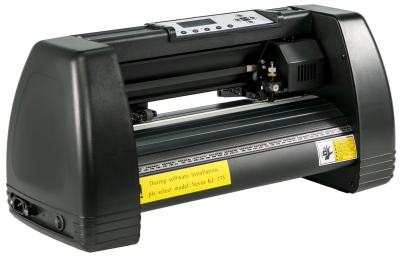
Vevor KI-375 Vinyl Cutter/Plotter
| Max feed width | 375 mm |
| Max cutting width | 285 mm |
| Pressure | 10-500 g |
| Speed | 10-800 mm/s |
| Precision | +/-0.01 mm |
| Dimensions | 58.42 x 24.13 x 15.24 cm |
| Location | Craftpunk/Digifab room, on the right on upper shelf |
| Status | In working order |
| User manual | Vevor product guide |
Usage
Requirements
- Inkscape (free download for PC, Mac and Linux)
- Vinyl sheets/rolls or paper stock that you want to cut
Bringing your own laptop is preferred so that you can continue to source/edit designs when not at the space. However, Inkscape is also installed on the corner computer for you to use. If you aren't picky about material, there is also a big roll of adhesive black gloss vinyl on the shelves that you are free to use.
Instructions
On the machine
- Lift up roller clamps at rear
- Feed in material from the rear (if using a roll, have it unfurl over the top instead of out from underneath)
- Align top-left corner of material to be just below the cutter blade
- Slide rightmost roller (when viewing from the rear) horizontally so that it holds your material from the right
- Pull down roller clamps
- Connect power cord and switch power button on
On the computer
- Connect to your laptop/the corner computer with one of the USB cables from the shelf
- Copy the serial/COM port
- Mac: run
ls /dev/cu.*in terminal (e.g./dev/cu.usbserial-110) - Linux: run
ls /dev/ttyUSB* /dev/ttyACM* 2>/dev/nullin terminal (e.g./dev/ttyUSB0) - PC: Open Device Manager → Ports and look for
USB-SERIALport (e.g.COM3)
- Open/create a design in Inkscape
- From the toolbar, open Extensions → Export → Plot…
- Make sure Port type is set to Serial
- Paste the serial/COM port into the Serial port field
- In the Plotter Settings tab
- Set Resolution X and Y to 1000
- Set Rotation to 270°
- Hit Apply, which will begin the cut
Tips
- You can fit 375mm wide material, but can only cut max 285mm design out of it
- You can only cut paths, text and shape objects (e.g. rect), not images. Use the “Trace to bitmap” tool in Inkscape if you have a vector-looking image.
- Make sure you keep separate shapes on separate layers. If you nest paths within a single layer, the cutter head will not lift and you'll get unintended cut marks across your design.
- Speed 300mm/s and Force 100g are sensible defaults
- If nothing happens after hitting Apply, check the machine isn't in Offline/Pause mode
- The rollers are strong enough to pull out a roll; you don't need to account for slack
- There's a slicer that usually lives on the Dremel table you can use to trim your material
Guidelines
- Always leave the cutter head in the default origin position. If it isn't, simply hit the Reset button while powered on.
- Flip the power switch off before unplugging the machine, and switch it on only after plugging in
- Return the USB/power cables to the shelf when done
- Please inform someone whenever the machine begins speaking to you
Accessories and consumables
| Name | Location | Image |
|---|---|---|
| Power cable | On shelf next to machine | |
| USB-A to USB-B cable | On shelf next to machine | |
| USB-C to USB-B cable | On shelf next to machine | |
| Blades | Container glued to machine |
Known Issues
| Date | Description | Workaround | Proposed Remediation |
|---|---|---|---|
| 20/10/2026 | Mac support requires modified Inkscape Extension | Download fixed extension | Submit upstream PR to Inkscape? |
Modifications / Maintenance History
| Date | By | Description | Work done | Cost |
|---|---|---|---|---|
| 28/30/2026 | Ron Au | Supply USB-C cable | A lot of laptops like MacBooks need adapters for the existing cable so I added a new one | $12.31 |
| 28/30/2026 | Ron Au | General maintenance | Calibrated roller springs so they no longer leave deep imprints in vinyl, cleaned rollers and gave the whole thing a wipe | N/A |
- tools/craftpunk/vevor_cutter
- Last modified: 36 hours ago
- by
 ronvoluted